Hiển thị các bài đăng có nhãn Info / Tips. Hiển thị tất cả bài đăng

Thứ Bảy, 17 tháng 5, 2014

CORBY2 - Virtual Keypad

When you are not comfortable in playing Full-touch Java Games or Apps, Virtual keypad is your rescuer. As you can see in the image, It is composed of eight ( 8 ) boxes with a specific function. The four arrows signals its direction. The two opposite dots function will depend on the game/app. On that image, the left one functions as "Item" and the other one as "Pause". The other buttons function will
also depend on the game/app you are playing.

Advantage of using Virtual Keypad

    Virtual keypad is very helpful especially if a java game has a limited buttons space and when you tried to touch a specific button, the other one will also be touched which can be annoying sometimes. If you are playing an RPG Game, I think the absence of virtual keypads can make the game harder. Virtual keypads can help you move your character properly as well as other game functions. 

Disadvantage of using Virtual Keypad

    When you are using Virtual keypad, the game screen will reduce as virtual keypad will also take a little space. 

How to enable Virtual Keypad in Corby 2

    To enable virtual keypad on a specific game/app, simply go to "Games" and click "Settings". Now click "Use Virtual Keypad" and check the game/app in which you want to use it.

Thứ Sáu, 16 tháng 5, 2014

Corby 2 - Android Appearance Combo

As a solid corby user, we are always finding the best possible features and designs that we could possibly apply in our phones. As a series of research and test, I found this feature combination which makes your phone ( Corby 2 ) have a similar looks and appearance to Android Phones. Android combo features includes Android boot, Android Homescreen and Android Theme which will surely satisfy you. The features are gathered across the web and believed to be in public domain. However, Corbysociety has no intention to copy or own these
features. 

1.) Android Boot ( Firmware )

   This firmware is applicable in Samsung GTS3850 ( Corby 2 ), When you turn your phone ( Corby 2 ) on or off, you will see an android boot screen instead of the default Samsung boot screen. We can assure you that this firmware is still working fine. 


How to Install this Firmware ?

1.Download the Firmware here : http://adf.ly/QAzKt

2.Download Multiloader v5.61 here : http://adf.ly/iG8il
( If link doesn't work, try searching another from Google )

3. Open Multiloader.Click CSC and then inject the firmware you have downloaded.


4. Now turn your corby off and then set it to download mode.
How to set to download mode?
Press and Hold VolumeDown+LockScreen+CallButton.

5. Connect your Phone on your computer using Samsung USB Cord. If your computer won't detect your device then you should download Samsung USB Driver: Download here: http://adf.ly/QhzLw

6. Going back to the multiloader, Click "PORT SEARCH" and then "Download".

7. Wait until installation is done.

2.) Android Homescreen ( Firmware ) 

    This is the most exciting and awaited part. The feature is 80% similar to Android phone homescreen. Features includes: Changing of Wallpaper has been easier, Unlock screen by Sliding, Cleaner home interface, Shortcut buttons, Date and Time.

 
How to Install this Firmware ?

1.Download the Firmware here : http://adf.ly/iH5Mc

2.Download Multiloader v5.61 here : http://adf.ly/iG8il
( If link doesn't work, try searching another from Google )

3. Open Multiloader.Click Rsrc1 and then inject the firmware you have downloaded.

4. Now turn your corby off and then set it to download mode.
How to set to download mode?
Press and Hold VolumeDown+LockScreen+CallButton.
5. Connect your Phone on your computer using Samsung USB Cord. If your computer won't detect your device then you should download Samsung USB Driver: Download here: http://adf.ly/QhzLw

6. Going back to the multiloader, Click "PORT SEARCH" and then "Download".

7. Wait until installation is done.

3.) Android Theme ( .SMT )

    There are lots of Android themes you can search and download in this blog. Just find the best one which satisfies you. Please take note that you must install your theme first before installing firmwares. Once you have installed the firmware, you cannot change your theme anymore unless you change back to default / original corby 2 firmware.

If you have questions/clarifications, please leave a comment.

Thứ Năm, 15 tháng 5, 2014

Make Your Own Corby 2 Theme

Photo Courtesy : http://donna-tell-oh.blogspot.com/
Themes beautify our phones, so we become very particular in choosing the best theme which satisfies our needs. Ever wonder how these themes are made? Samsung Theme Designer is a free software that you can use in making your own theme. According to theme makers, making themes is fun and easy but you must be patient enough to complete these themes. Learning how to develop your own theme will give you lots of advantage. If you want to surprise your girlfriend/boyfriend, then you could
probably make her/his face as your icons. 

Read Tutorial here: donna-tell-oh

Donnna-Tell-oh's blog author is a professional Samsung GTS3850 ( Corby 2 ) Theme maker. With a great passion in blogging and designing, she originally made those themes available in her blog.

Donna-Tell-oh Facebook Fanpage: https://www.facebook.com/donnathemes 

Donna-Tell-oh Tumblr Account: http://donnathemes.tumblr.com/ 

Credits to: http://donna-tell-oh.blogspot.com/


Using Samsung Theme Designer, you can make lots of themes in any supported Samsung mobile phone. 

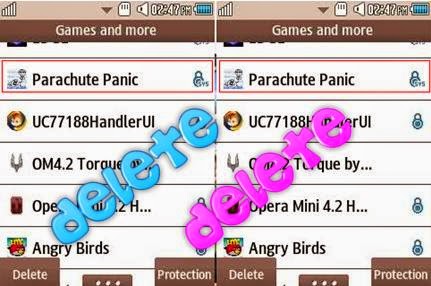
How to Delete Locked Games in Corby 2

Corby 2 has it's own unique feature which includes Games for entertainment. There are times that we feel to play new games especially when we become bored on the current game that we play. But these locked games may be annoying to some of us because they are large in size. Since Corby 2 has a limited Phone memory, you need to delete one of those games so that you can download a new one. But how can you completely
eliminate this locked games? Follow these easy steps.

1. Gather the required things.

   Deleting locked games cannot be done on your phone manually. You need to do it by plugging your phone ( Corby 2 ) on your computer. Prepare your Samsung USB Cord and configure your Corby 2. Remove your Sim card and Memory card for safety reasons. 

   If you haven't installed Samsung USB Driver yet, download and install one so that your device will run smoothly. To make sure that you have successfully installed Samsung USB Driver, check it manually. Plug your phone on your Computer. 

   For Windows XP Users: 

  • Go to "Control Panel"
  • Click "Performance and Maintenance"
  • Click "System"
  • Click "Hardware" then "Device Manager"
  • Under "Modems", You should see "Samsung USB Modem"
   For Windows 7 Users:
  • Click "Start" then search "Device Manager"
  • Under "Modems", You should see "Samsung USB Modem"
   Now download TK File Explorer 2.4, this is the software that we are going to use to delete the locked games. Extract the file. File password is corbysociety.

2. Follow the steps carefully.

At this moment, your phone must be already plugged on your computer.
  • Launch TK File Explorer 2.4
  • Click "Connect" and set your "Port" ( Example COM5 ) then click "Ok". Click "Connect" once again.
  Method # How to Know Your Port
  1. Using your keyboard, press the Windows logo+R (not CTRL+R) then type devmgmt.mschit enter and the Device Manager window should appear. Click "Modems" and right click SAMSUNG Mobile USB Modem. Select Properties. Click the Modem tab and you will see your Port number. Take note of that.
  2. Using Multiloader v5.65, you can also know what your port number is using. Download Multiloader v5.65 here. Launch Multiloader and then connect your phone in "Download Mode" in your computer. Now click "Port Search" you should see what your port number is.
  • Click "AppEx" then click "User"


  • Click "Java" then click "Games"

  • You should see a list of your games. Finally, delete the locked games.
  • Click "Disconnect" and unplug your phone ( Corby 2 ).
Watch Video tutorial by Hariz Zizi


If you have any questions/clarifications, just leave a comment.

How to Save Power in Any Mobile Phone

We all know that mobile phone is very important to all of us. It is the alternative way in communicating our love ones especially if they are far away. Mobile Phones are in everywhere as mobile companies continue to produce and improve mobile features to satisfy our needs. As many features are added, battery consumption becomes too fast. You might fully recharged your device in couple of hours, but your battery became empty in just a couple of minutes. It is very
frustrating when you run out of power especially when you are dealing with a very important or serious matter. Ever wondered why is that so? Try to follow these easy steps, it might help you extend your battery life in any mobile phones and devices.

1. Keep your Screen Brightness as low as possible. 

   Keeping your screen brightness in low can help you save power. When you are using your devices at night, it is more appropriate to reduce your screen brightness. This can also help in protecting your eyes since too much brightness in the dark can is not appropriate.


2. Keep backlight time at a minimum level.

   Keeping your your device backlight time at a minimum level can help save power. This will let your device doesn't stay active for long when not in use. 


3. Avoid in using Widgets which needs Internet Connection.

   Widgets like weather, news feeds, and social networking updates consume more power as they use your phone's data connection and auto sync capabilities.


4. Turn off Bluetooth and Wi-Fi when not in use.

   Turning off your bluetooth and Wi-Fi can help you save power. They may just be like that but they consume more battery power.


5. Close running unused applications.

   When you are using your device, for example a tablet, there are times that you do really open lots of applications ( Games, Browsers or etc ). And so inorder to have easier access with them, you just minimize it on the dock. To save power, close unused applications. They are just minimized and still continue to function, thus consuming more battery.


6. Download a Battery Saver App.

   It is much better to download a battery saver application in play store ( If your device is Android ). This app will provide you a lists of running applications which consumes more power. 
    

If you have questions/clarifications or additional tips, please leave a comment.

Firmware Risk - Dead Corby Prevention

Installing firmwares is fun and exciting. I know we really want to have a nicer and cooler corby 2 appearance, interface and features. But don't you know that when you install firmware, you are also putting your phone on risk? I am not saying nor encouraging you that you should not install or update firmwares anymore. I am saying that you should do it properly, to prevent possible phone damage which can kill your phone ( corby 2 ). 


These steps might be helpful for you, before you install firmwares please take time to read this.

1. Gather all required things. 

    Before installing, it is much better that you should gather and prepare the required things first ( Software ) before making any steps. Let us not close the tendency that if ever you'll forget a part or let us just say a piece of firmware ( like .csc ), it could possibly mess up your phone which could result in damage.

    It is much better to make a new folder, label it properly so that you can locate the firmware files easily. The more organize folder for each file, the better.


    You should also check if the firmware you are going to install is compatible with corby 2. You should also ask the authorized person if it still works, if there's an update or what should you do to install it properly.

2. Configure your Computer.

    Your computer is also part in installing. If your computer freezes while installing firmware, that's a big problem. It will mess your phone and could possible kill your corby 2 because of incomplete installation, so it is always advisable to check and configure your computer first.

    Try to install firmwares on computer which runs smoothly, no problems at all and has a good specifications to prevent hardware failure upon installing. Try to check your computer specs by pressing Windows-logo + R and type "dxdiag". 


    Now check your USB ports, if it is running well. Your ports must not be damaged because it can cause incomplete installation. If possible, do not use an external usb port when installing.

3. Stable Internet Connection.

    If you are going to download firmwares on external links, I suggest you should download it when you have a stable internet connection. I really blamed our internet connection provider when I found out that incomplete download of firmware killed my corby 2. I installed it on my phone having an incomplete file. Now I need to bring my phone to shops to have it for repair.

Did I miss something? share it and tell our friends by leaving a comment.